
Create and review personal flashcards
Write your own question and answer, edit cards, and use spaced or offline review.
Step 1. Open the notebook’s Flashcards
Choose Flashcards from a notebook. Try recalling the answer before flipping a card, then choose Again, Hard, Good or Easy honestly. The next review is scheduled from your rating.
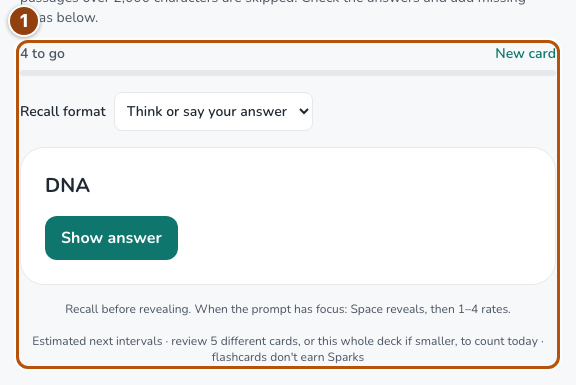
Reference 1 · The numbered outline marks the useful controls. Select the screenshot to enlarge it. Step 2. Open Manage cards
Below the review area, expand Manage cards. Choose Add a card for your own question and answer, or Edit on a saved card. You can use personal cards even before asking AI to generate a study set.
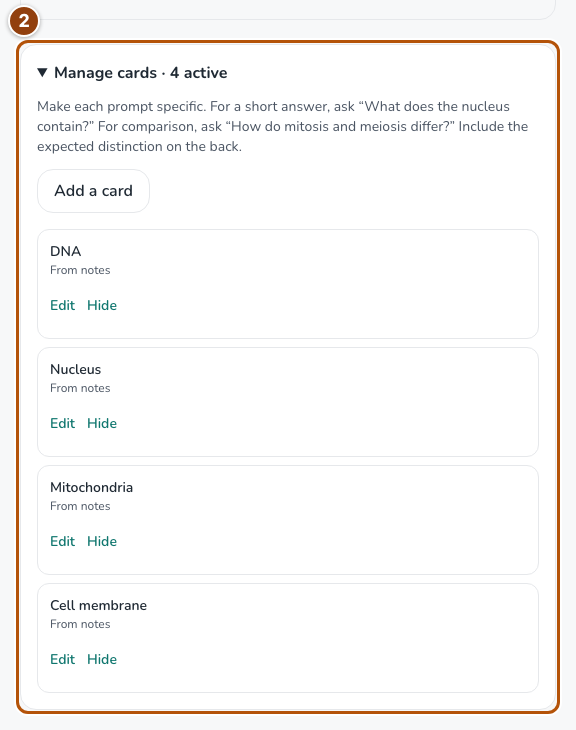
Reference 2 · The numbered outline marks the useful controls. Select the screenshot to enlarge it. Step 3. Write the prompt and answer, then save
Enter a specific Prompt of up to 200 characters and an Answer of up to 2,000 characters. Choose Save card. Personal cards belong to this notebook; each deck supports up to 80 personal cards.
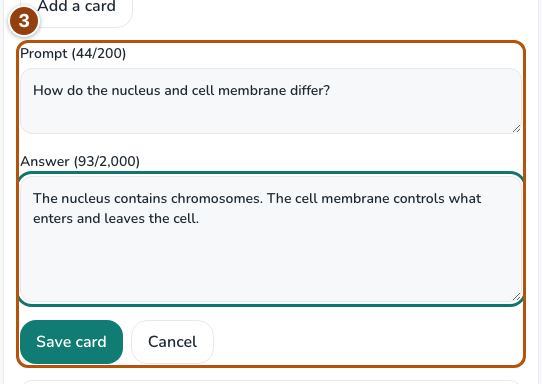
Reference 3 · The numbered outline marks the useful controls. Select the screenshot to enlarge it. Step 4. Keep the deck useful and download it when needed
Hide a card to remove it from review, or Restore it later. Expand Study these cards offline, confirm that you want a private copy on this device and choose Download cards. On the offline page, open the deck, recall and rate answers, then reconnect and choose Sync pending reviews when offered. After editing cards, download an updated deck.
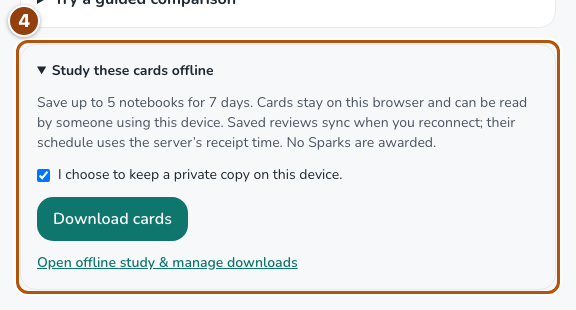
Reference 4 · The numbered outline marks the useful controls. Select the screenshot to enlarge it.