
Adjust your experience and manage your account
Set your theme, focus, reminders and privacy preferences.
Step 1. Open Settings
Choose the gear in the top bar of Study, Typing, Reader or Pet. Settings contains your profile, Appearance, Experience, reminders, plan and data controls. The logo on a primary tab returns to Study; the bottom four-tab navigation is unchanged.
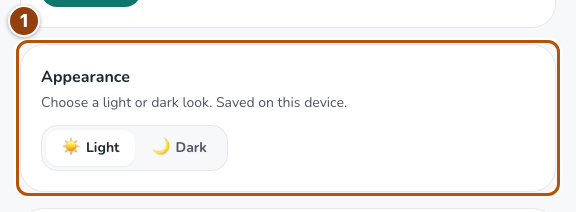
Reference 1 · The numbered outline marks the useful controls. Select the screenshot to enlarge it. Step 2. Choose Focus mode or reduce movement
In Experience, turn off Pet & rewards and save to use Focus mode. Pets, Sparks and challenges disappear from the interface; your saved companions remain. In Pet, Pause animations stops motion. The device’s reduced-motion setting also takes precedence.
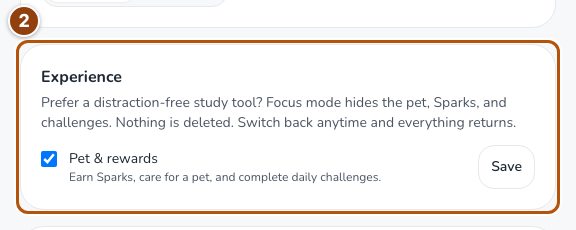
Reference 2 · The numbered outline marks the useful controls. Select the screenshot to enlarge it. Step 3. Set your timezone and reminders
In Profile, check Timezone and save changes. Skillwisy also synchronizes it with your device. In Daily reminders, choose a Reminder hour and save it. Enable browser notifications only if you want them. Delivery depends on browser/device support; email preferences are configured separately.
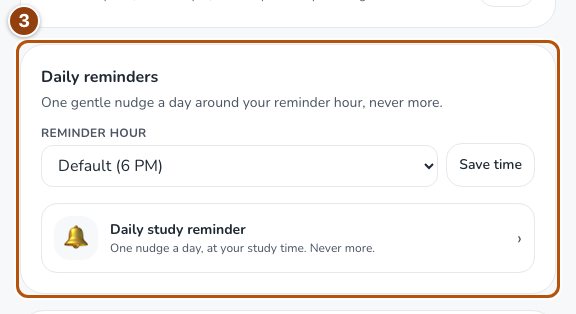
Reference 3 · The numbered outline marks the useful controls. Select the screenshot to enlarge it. Step 4. Use account and data controls carefully
Settings contains plan management, Trash, feedback and account/data controls. Export your learning history when you need a copy. Signing out removes private offline decks from this browser.
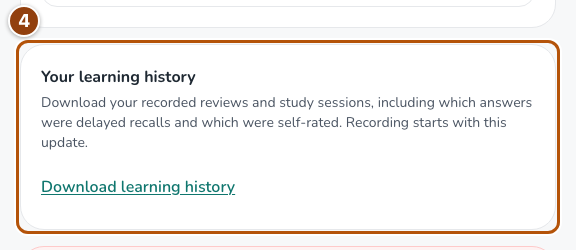
Reference 4 · The numbered outline marks the useful controls. Select the screenshot to enlarge it.