
Find your way around Skillwisy
Understand the four tabs, the welcome cards, the logo, Back and Settings.
Step 1. Use the four main tabs
The bottom bar keeps Study, Typing, Reader and Pet in that order. The highlighted tab shows where you are; a chapter still belongs to Reader. Study opens your next learning action, Typing opens keyboard practice, Reader opens your books and Pet opens your companion. Focus mode hides Pet without deleting saved companions.
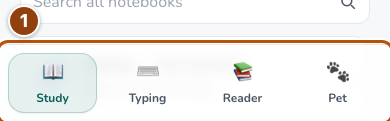
Reference 1 · The numbered outline marks the useful controls. Select the screenshot to enlarge it. Step 2. Recognize the primary-page header
Study, Typing and Reader have illustrated welcome cards. Their top bars, and Pet’s top bar, share the same layout: Skillwisy logo, page title, Sparks when enabled and the Settings gear. Choose the logo to return to Study or the gear to open Settings.
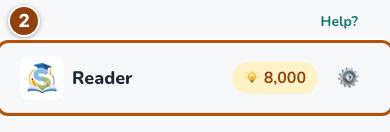
Reference 2 · The numbered outline marks the useful controls. Select the screenshot to enlarge it. Step 3. Use Back inside a section
A nested page replaces the logo with Back. A Reader chapter returns to the book’s contents; the book returns to Reader. Shop and Collection return to Pet. These buttons follow the section’s parent, so they may differ from your browser’s history button. Help? opens this handbook; Open app returns to Study.
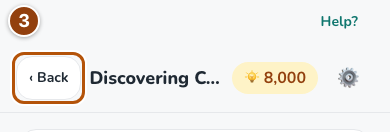
Reference 3 · The numbered outline marks the useful controls. Select the screenshot to enlarge it.