
Read a book and study a chapter
Upload a book, resume reading, listen and turn a chapter into study material.
Step 1. Open Reader and add a book
Choose Reader in the bottom bar. The welcome card introduces your private shelf. Open Formats & privacy if needed, then choose + Add a book (PDF, TXT, or photos). Select one PDF, TXT or Markdown document. Its filename becomes the initial title and the text is split into chapters. To rename a saved book, open its contents, then More. The Add button also works with Enter on a keyboard.
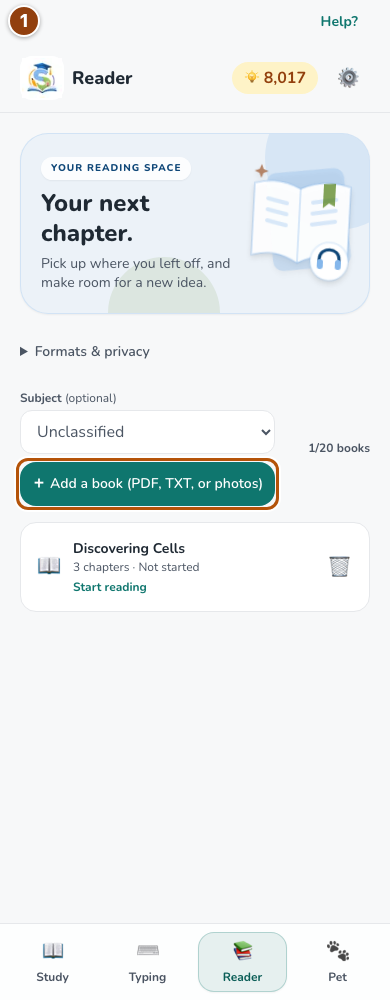
Reference 1 · The numbered outline marks the useful controls. Select the screenshot to enlarge it. Step 2. Review page photos before saving
For photos, select one or more page images together instead of mixing images and a document. Reader shows which photo it is reading. Cancel stops the batch. Check Extracted text, correct recognition errors, set the Title and choose Save as book. If a later photo fails, review the earlier pages that were kept. Photo reading uses the shared AI allowance; PDF and text-file parsing do not.
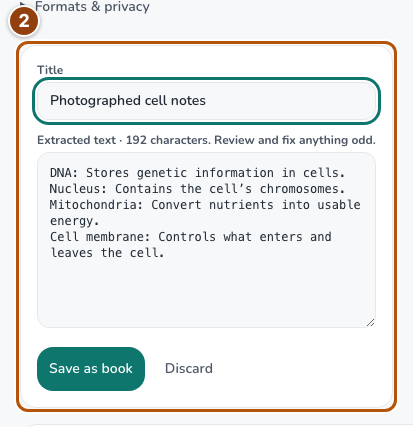
Reference 2 · The numbered outline marks the useful controls. Select the screenshot to enlarge it. Step 3. Choose a chapter or continue reading
Open a new book to see its chapter list and select a chapter. A book with saved progress can show Continue reading on the shelf and open the last chapter directly. The header’s Back returns from a chapter to its book contents, then from the book to Reader.
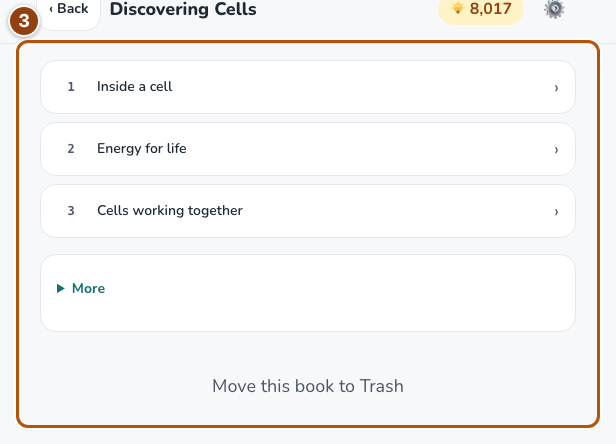
Reference 3 · The numbered outline marks the useful controls. Select the screenshot to enlarge it. Step 4. Read or listen
Choose Listen to read aloud and Stop to end playback. Use Listening speed, Smaller text or Larger text as needed. Tap a sentence to begin there. A Voice selector and voice preview appear when your browser offers suitable voices. Voices and connection requirements depend on the browser and device; Reader does not create a downloadable audio file.
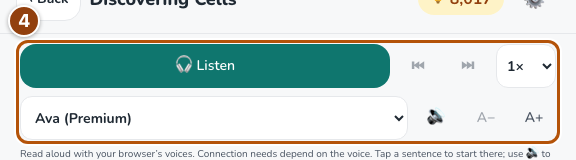
Reference 4 · The numbered outline marks the useful controls. Select the screenshot to enlarge it. Step 5. Turn the chapter into a notebook
Choose Turn this chapter into a notebook below the reader. The action creates or opens that chapter’s notebook. Check the imported material, then generate study tools or add personal flashcards. Your notebook plan limit still applies. After reading, try explaining two ideas without looking back.

Reference 5 · The numbered outline marks the useful controls. Select the screenshot to enlarge it. Step 6. Find archived books and check your quota
Reader counts archived books toward your plan: Free includes 1 book and Pro or an active Exam Pass includes 20. At the limit, Add is disabled. Use View archived books to find archived titles in Library. In an item’s More controls, clear Archived and save to put it back on the shelf. Moving a book to Trash frees a slot; archiving alone does not.
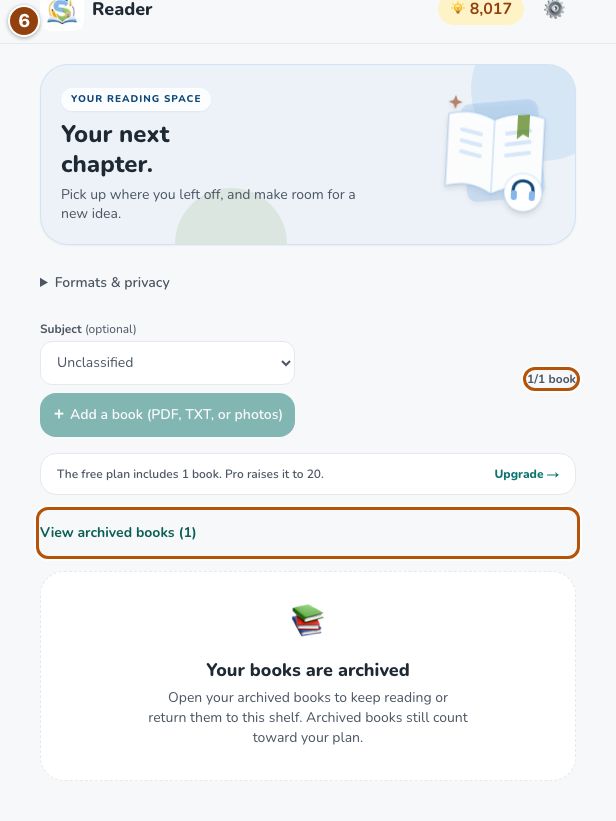
Reference 6 · The numbered outline marks the useful controls. Select the screenshot to enlarge it.