
Recover from a loading or saving problem
Use Try again, check an uncertain book save and avoid spending Sparks twice.
Step 1. Retry a page that could not load
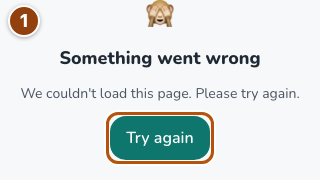
If Something went wrong appears, check your connection and choose Try again. A temporary loading error does not mean your books, Sparks or companions were erased. If asked to sign in again, use the same account. Repeated errors can be reported through Settings → Share an idea.
Reference 1 · The numbered outline marks the useful controls. Select the screenshot to enlarge it. Step 2. Check Reader before uploading again
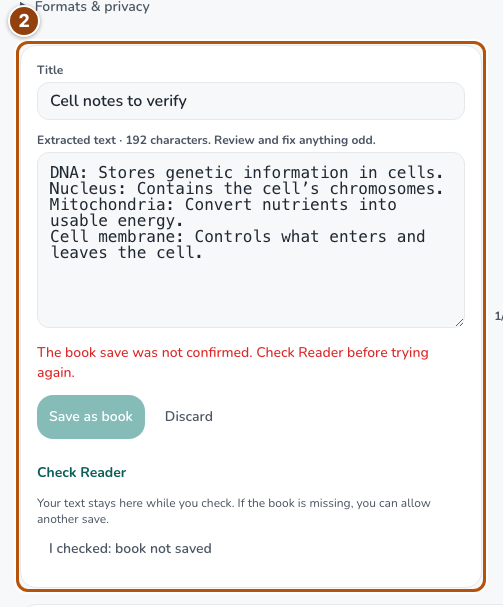
If the book save was not confirmed, choose Check Reader and look for the title. A server may have saved it even when its reply was lost. For a document, Check Reader refreshes the shelf. For a photo draft, it opens a new tab and keeps the text in the original tab. Only choose I checked: book not saved after confirming the book is missing.
Reference 2 · The numbered outline marks the useful controls. Select the screenshot to enlarge it. Step 3. Reload a purchase before spending again
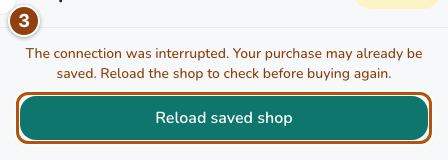
If a purchase confirmation was interrupted, use Reload saved shop. Check the updated Sparks and stock before buying again. For care, read the saved confirmation and check the need bars after reloading; a full need is not charged again. Avoid repeatedly pressing a paid action while its result is uncertain.
Reference 3 · The numbered outline marks the useful controls. Select the screenshot to enlarge it.