
Understand plans and AI allowances
Check what an upgrade changes and distinguish Sparks from song credits.
Step 1. Check the current plan comparison
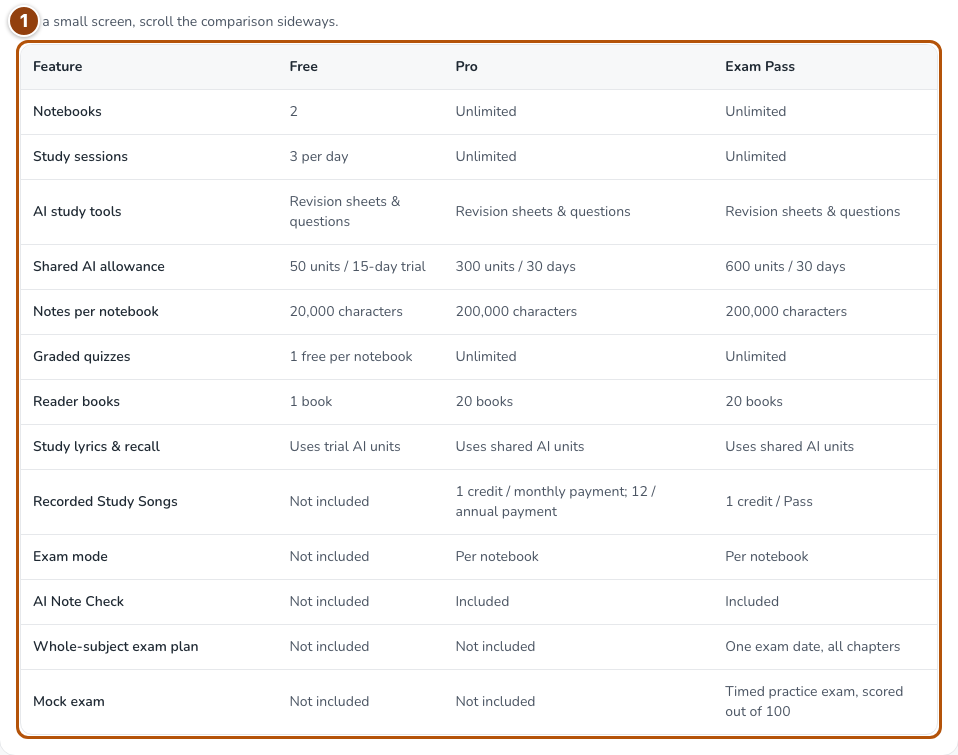
Open Pricing from the public home page, or the upgrade page from your plan controls in Settings. Compare Free, Pro and Exam Pass. Open Compare every feature for the details, and the allowance questions for AI use. Reading and reviewing saved material, AI creation and generated song audio have different allowances.
Reference 1 · The numbered outline marks the useful controls. Select the screenshot to enlarge it. Step 2. Check remaining AI capacity
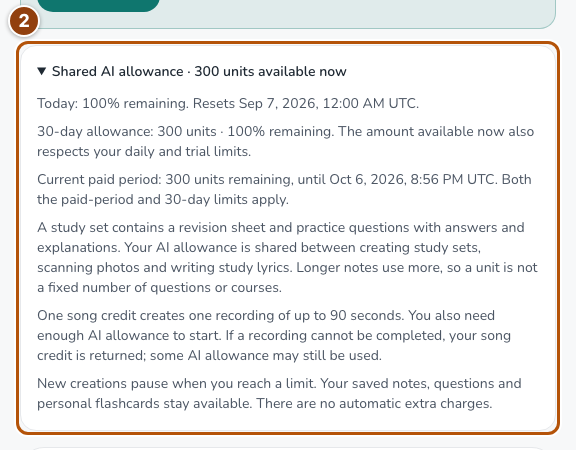
Open Shared AI allowance near generation tools to check remaining AI units and capacity information. Study-set generation, AI photo extraction and lyric writing share the allowance; longer input can use more units. Paid accounts have both paid-period and rolling 30-day limits, and the smaller remaining capacity applies. A payment does not reset rolling usage. Free trial limits differ. New work pauses at the applicable limit without automatic extra charges.
Reference 2 · The numbered outline marks the useful controls. Select the screenshot to enlarge it. Step 3. Keep currencies distinct
Sparks come from eligible learning activity and are used for companion care and eggs. Song credits cover generated song audio. Buying a plan or song credits does not buy Sparks or pet growth.
Step 4. Manage billing from Settings
Use the plan-management action in Settings to open the available billing controls. Confirm changes there and return to Skillwisy to check the saved plan status. Keep the receipt or confirmation for your records.