
Use audio quizzes and study songs
Listen, pause to recall and practice the facts behind a chant.
Step 1. Choose an audio tool in your notebook
Open a notebook with generated questions. Audio quiz is in Practice. For lyrics and generated song audio, use the memory chant or study-song actions in Create. These are separate tools: an audio quiz reads questions, while a chant turns source facts into lyrics.
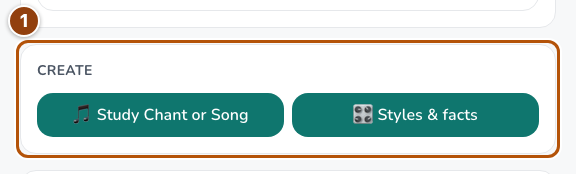
Reference 1 · The numbered outline marks the useful controls. Select the screenshot to enlarge it. Step 2. Recall during the audio quiz pause
In Audio quiz, choose the session size and pause length, with Due questions first or unseen questions when available. Choose Start listening. Try to say or think the answer during the pause, then compare it with the spoken answer. Use pause or stop as needed. This listening exercise is not an automatically graded spoken answer.
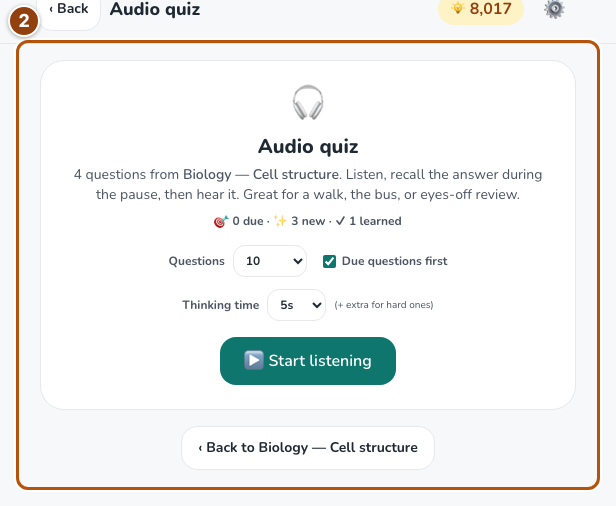
Reference 2 · The numbered outline marks the useful controls. Select the screenshot to enlarge it. Step 3. Create or open a chant
Choose a style, scroll to Facts to include and select the requested number of facts, then choose Generate my chant. You can also open saved lyrics. Check the facts against your notes and use the fill-in-the-blanks recall exercise after reading. Writing lyrics uses the shared AI allowance; it does not by itself generate a recorded song.
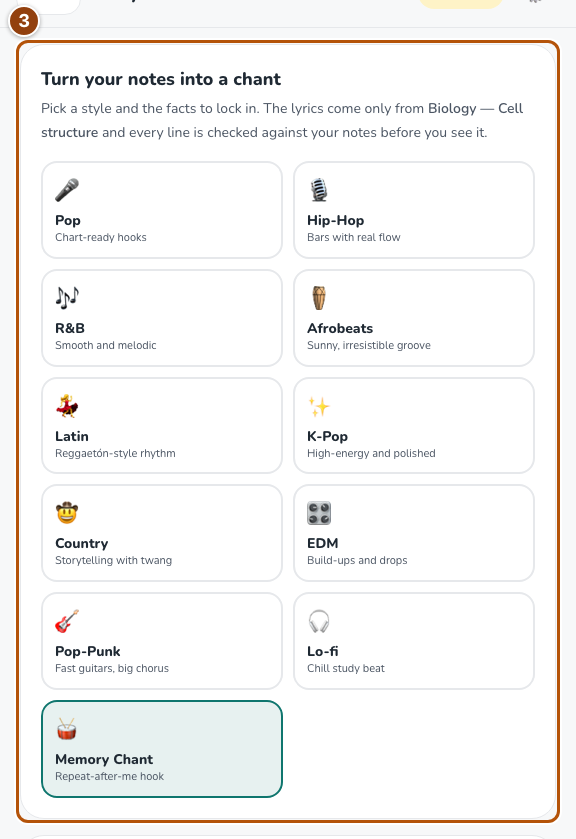
Reference 3 · The numbered outline marks the useful controls. Select the screenshot to enlarge it. Step 4. Check the audio-credit requirement
Real generated song audio uses separate song credits and an eligible plan. Review the allowance shown before generating audio. Saved recordings can be replayed without generating them again.
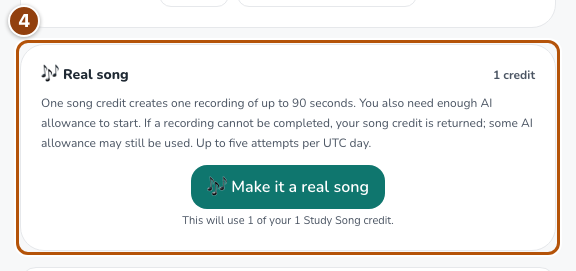
Reference 4 · The numbered outline marks the useful controls. Select the screenshot to enlarge it.