
Plan for an exam
Set a date, choose a daily time budget and follow the available exam tools.
Step 1. Open the notebook’s exam planner
Open Exam mode from your notebook. The available tools depend on your plan: Pro includes notebook exam planning; Exam Pass also includes subject planning and mock papers.

Reference 1 · The numbered outline marks the useful controls. Select the screenshot to enlarge it. Step 2. Set the date and your available time
Enter the Test date and choose Set plan. In Your review plan, choose 5, 10 or 15 min/day for a realistic daily time budget. Dates follow the timezone configured in your account.
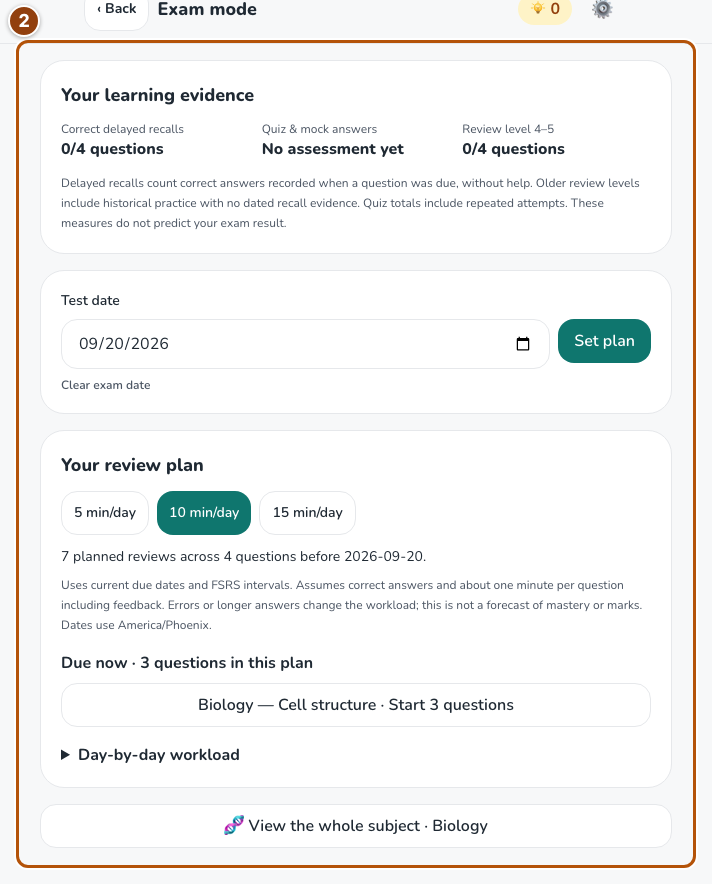
Reference 2 · The numbered outline marks the useful controls. Select the screenshot to enlarge it. Step 3. Work through the recommended reviews
Use the schedule to open the relevant practice. The planner uses your available questions and review dates. Look at remaining topics and recent answers alongside the schedule.
Step 4. Use subject exams when your plan includes them
On Study, open Exams & learning record and choose a subject, or use the subject link from a notebook. Exam Pass enables subject-wide plans and new mock papers. Set the subject’s test date and daily study budget, then follow the available practice or mock-paper action. Submit the paper and read its saved result by chapter. Past papers and learning records remain available after plan changes.
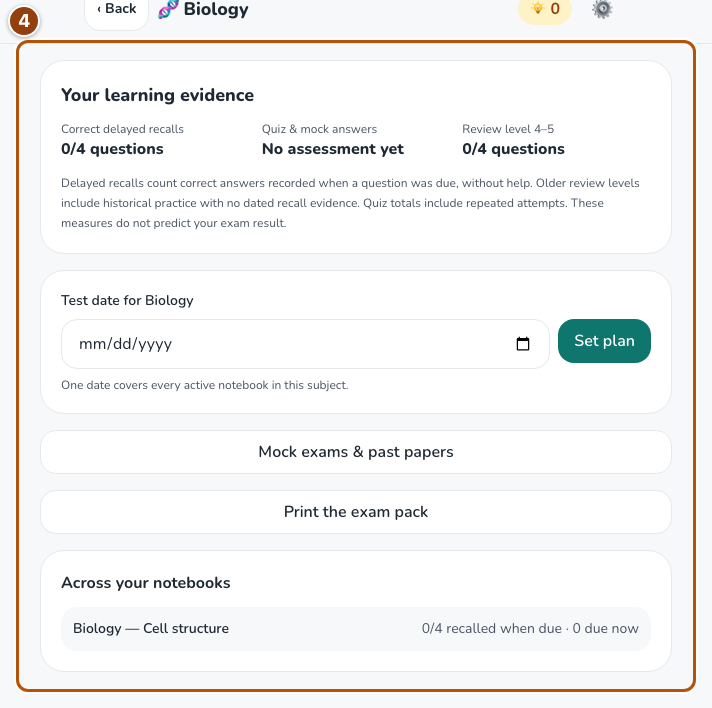
Reference 4 · The numbered outline marks the useful controls. Select the screenshot to enlarge it.