
Scan a worksheet or handwritten notes
Frame a page, check the extracted text and save it as study material.
Step 1. Open the scan tool
From Study, choose + Add, then Snap homework. Use the camera or select a page photo from your device. Reader’s book-photo import is a separate way to read photographed pages as a book.
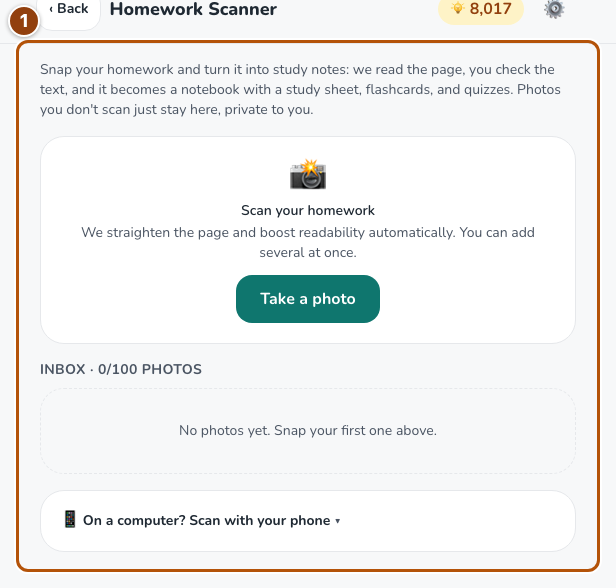
Reference 1 · The numbered outline marks the useful controls. Select the screenshot to enlarge it. Step 2. Check the page framing
Keep the page flat and well lit. Choose Crop for a selected photo, adjust its corners to the page edges and choose Save crop. Check that the useful text is still inside the frame before adding the photo to your homework inbox.
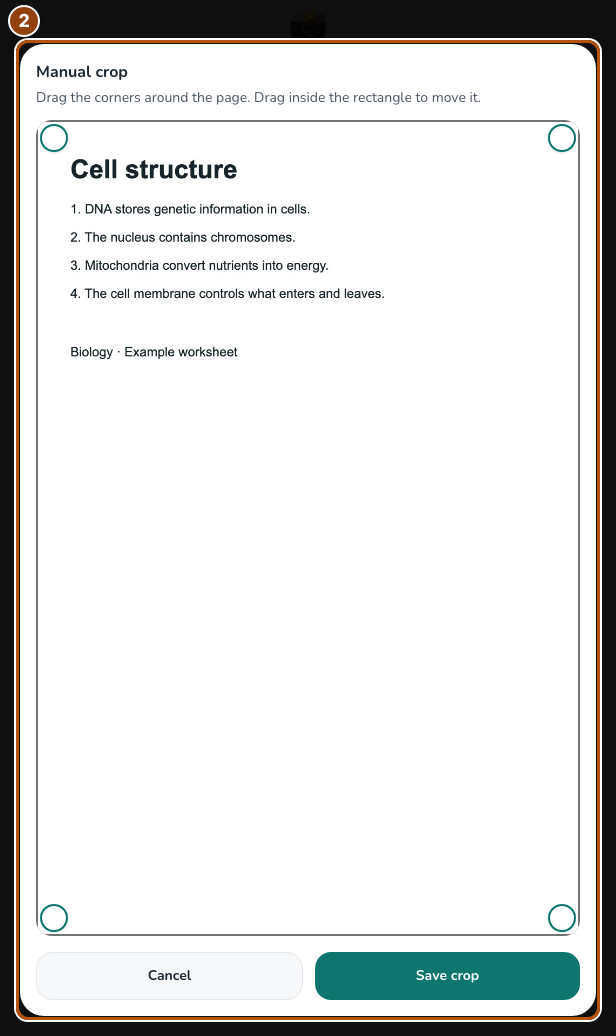
Reference 2 · The numbered outline marks the useful controls. Select the screenshot to enlarge it. Step 3. Extract and review the text
Choose Add 1 photo (or the displayed photo count), open the saved photo in the inbox and choose Turn into study notes. Check names, numbers and symbols in Extracted text against the image, and correct recognition errors.
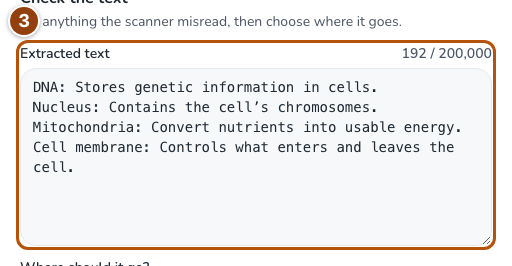
Reference 3 · The numbered outline marks the useful controls. Select the screenshot to enlarge it. Step 4. Save to the right notebook
Choose a new notebook or append the extracted text to an existing one, as offered by the scan tool. Open that notebook to review the final material and create study tools.
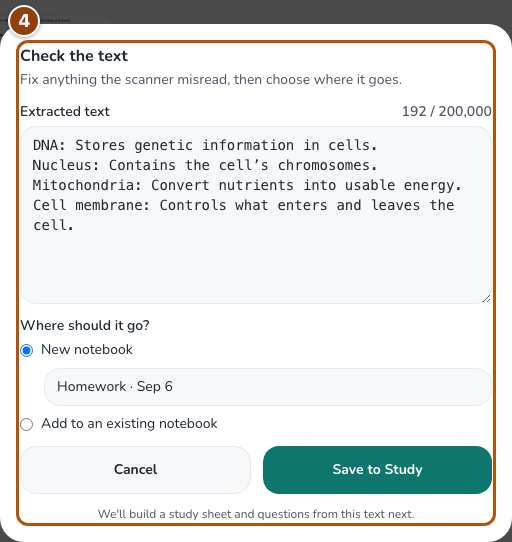
Reference 4 · The numbered outline marks the useful controls. Select the screenshot to enlarge it.