
Practice typing with a keyboard
Follow the typing course or practice on your own notes.
Step 1. Choose a typing activity
Open Typing in the bottom bar. Below the welcome card and your saved statistics, choose Typing course for structured lessons or Type your notes for notebook practice. Use a computer or a connected physical keyboard. On a touch-only device, use the keyboard guidance or return to another study activity.
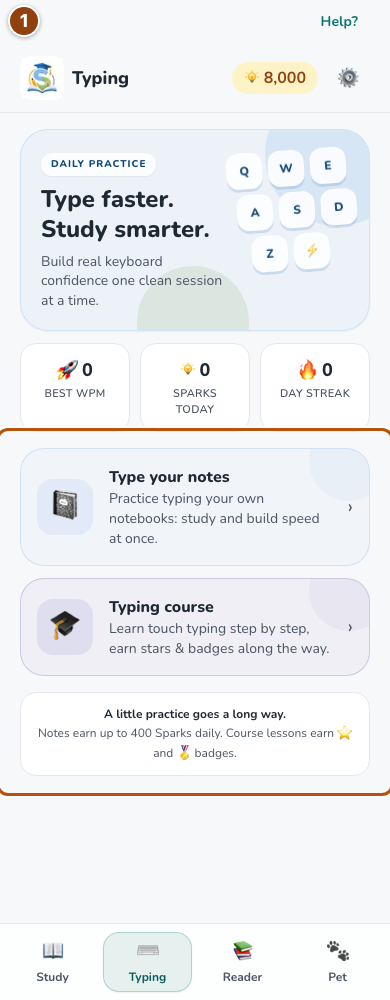
Reference 1 · The numbered outline marks the useful controls. Select the screenshot to enlarge it. Step 2. Choose a lesson or notebook
In Typing course, choose a lesson from the grouped list. Stars and saved results appear beside completed lessons. In Type your notes, choose a notebook; its practice card supports click, Enter and Space.
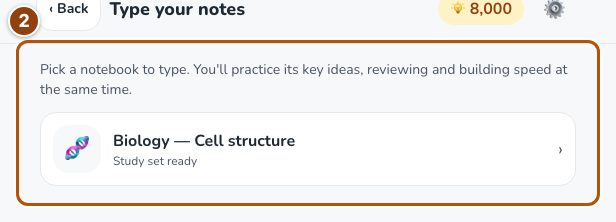
Reference 2 · The numbered outline marks the useful controls. Select the screenshot to enlarge it. Step 3. Follow the course’s lesson sequence
Open a lesson, read its instructions and type the prompted characters. Course results award stars and badges. Under Adaptive, Weak-key drill uses your recorded key errors to target difficulties. Without enough history, it starts with common words. Course lessons do not award Sparks.
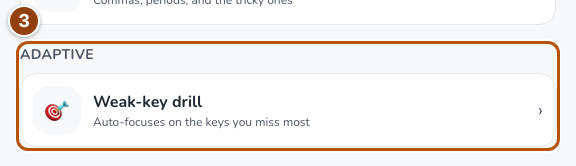
Reference 3 · The numbered outline marks the useful controls. Select the screenshot to enlarge it. Step 4. Type accurately and use the guidance
Type the displayed text into the practice area. Follow the highlighted character and use the keyboard or finger guidance when offered. Correct errors as you go; accuracy matters alongside speed.
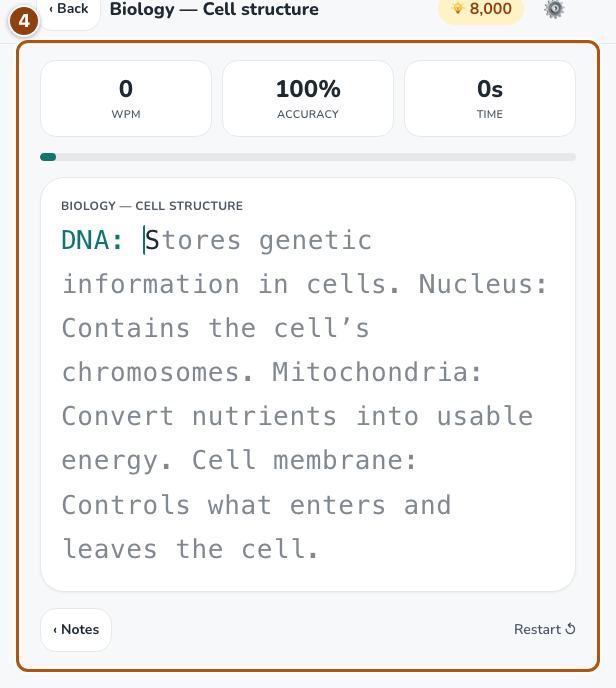
Reference 4 · The numbered outline marks the useful controls. Select the screenshot to enlarge it. Step 5. Read your result
At the end, check WPM, Accuracy and your saved result. The course awards stars. Notes typing can earn capped Sparks; the result explains when a run does not qualify.