
Set up Skillwisy Math for your child
Create a parent account, give permission, add a child and follow their progress.
Step 1. Create your parent account
On the Skillwisy Math page or on Pricing, choose Start free as a parent. The form says Create your parent account. Use your own email and date of birth: the account is for a parent or guardian aged 18 or older, not for your child. After sign-up, Family access opens. Already have an account? Log in, then choose Family access & progress in the ••• menu of Skillwisy Math, or Open family access in Settings.
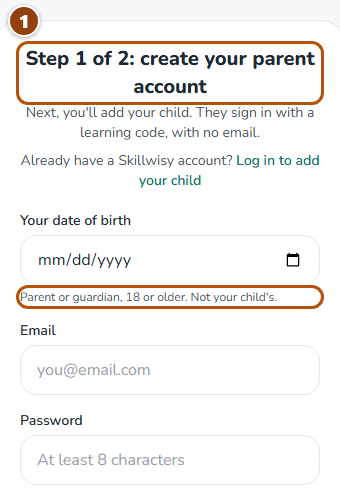
Reference 1 · The numbered outline marks the useful controls. Select the screenshot to enlarge it. Step 2. Give your permission
Under Parental permission, read the direct notice to parents. Tick the statement that you are at least 18, the child’s parent or legal guardian, and give your permission. Type your full name as your signature, then choose Sign and give permission. Skillwisy records your name, the date and the notice version. When the confirmation email is sent, it says what you agreed to and how to revoke.
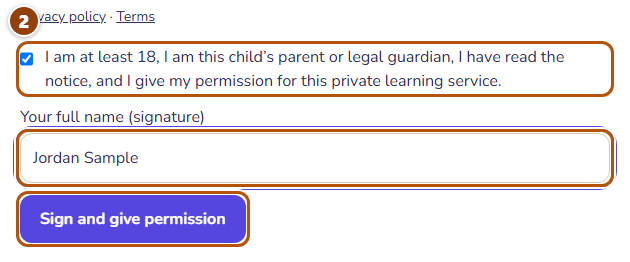
Reference 2 · The numbered outline marks the useful controls. Select the screenshot to enlarge it. Step 3. Add your child
Under Add a child learner, choose the Grade (US) and a child password of at least 12 characters, then choose Create child account. A generated label keeps your child’s real name private. You can add up to five child accounts.
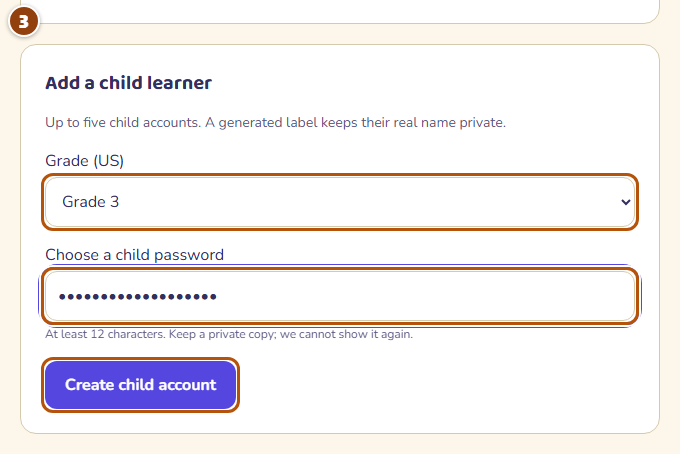
Reference 3 · The numbered outline marks the useful controls. Select the screenshot to enlarge it. Step 4. Write down the learning code
Skillwisy shows the child’s learning code only once, for privacy. Write it down and share it privately with your child, with the password you chose. Lost it? On the child’s card, choose Get a new learning code; the old code stops working.
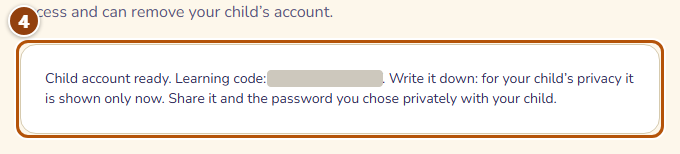
Reference 4 · The numbered outline marks the useful controls. Select the screenshot to enlarge it. Step 5. Let your child sign in
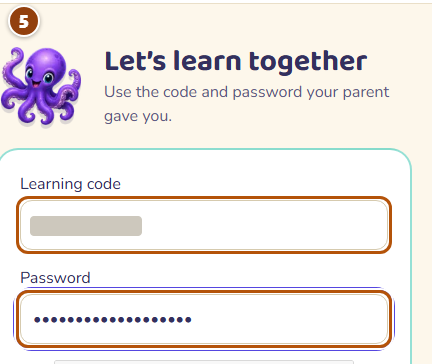
On your child’s device, go to skillwisy.com/kids, or open the Skillwisy log-in page and choose Sign in here, next to Child with a learning code? Your child enters the Learning code and the Password, then chooses Start learning. On a shared device, sign out of your adult account first.
Reference 5 · The numbered outline marks the useful controls. Select the screenshot to enlarge it. Step 6. Follow your child’s progress
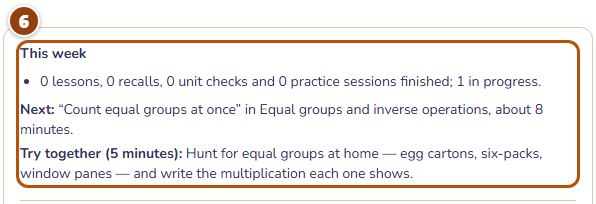
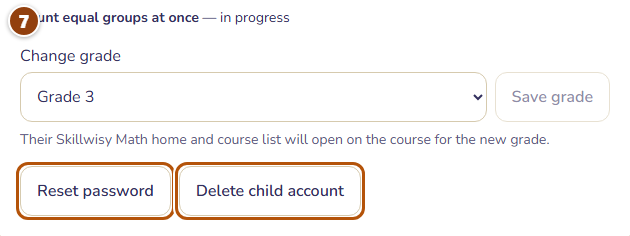
On Family access, each child’s card shows This week: lessons, recalls, unit checks and practice finished, what your child now solves alone, what is still being built and a five-minute activity to try together. Send me the weekly summary emails it every Sunday; untick it to stop. Change grade opens your child’s home on the course of the new grade.
Reference 6 · The numbered outline marks the useful controls. Select the screenshot to enlarge it. Step 7. Reset, remove or revoke
Reset password sets a new child password. Delete child account permanently removes that account and its lessons after you confirm. Revoke permission and erase child lessons blocks every child account at once and removes their saved lessons; the child sign-in identities are removed after 30 days, or sooner if you delete them.
Reference 7 · The numbered outline marks the useful controls. Select the screenshot to enlarge it.