
Learn with Skillwisy Math
Start a lesson, use hints, earn stars and play the math games.
Step 1. Open Skillwisy Math
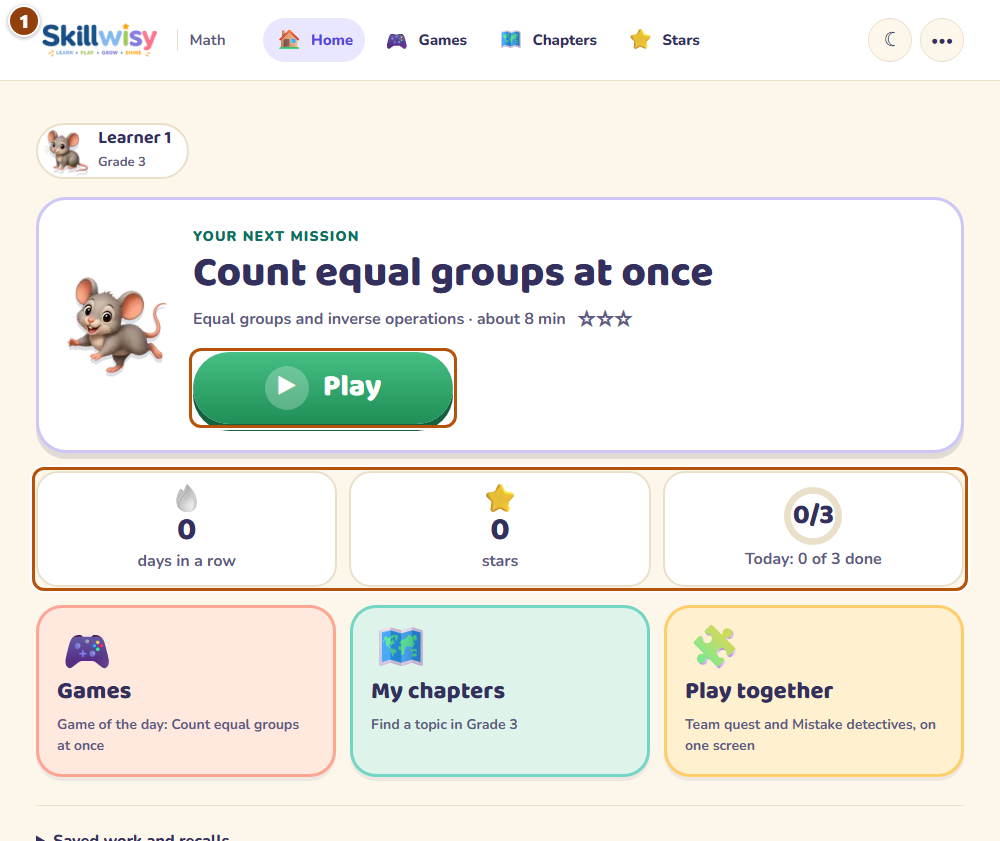
Choose Math in the bottom bar, or in the side navigation on a computer. A child with a child account signs in with a learning code and lands here directly. The big button opens your next lesson: Play, Continue, Play again or Try my recall. Below it you see your days in a row, your stars and today’s goal. On a grown-up’s account, Who’s playing? first asks for the player and a grade; the player stays saved on that device. The top bar has Home, Games, Chapters and Stars.
Reference 1 · The numbered outline marks the useful controls. Select the screenshot to enlarge it. Step 2. Follow the six steps
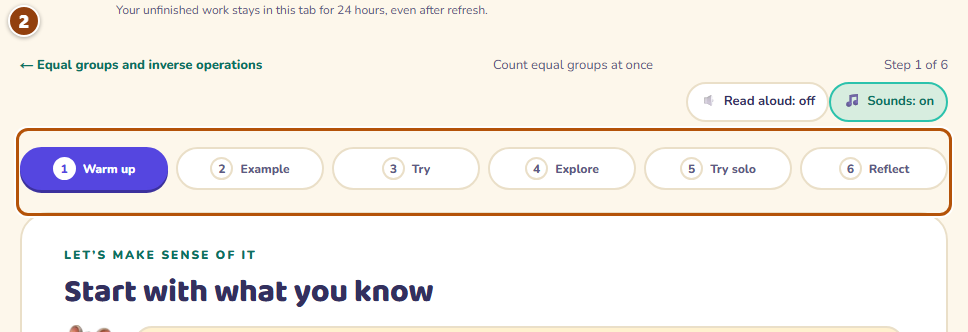
Each lesson teaches one idea in six steps, listed at the top, such as Warm up, Example, Try, Explore, Try solo and Reflect. The warm-up starts with today’s big idea, then a quick question. Checked steps are saved, so you can stop and come back. If the idea is new to you, choose the button that says This is new to me to see an example first. Read aloud and the Listen buttons read the lesson to you. Reflect ends with your take-away and the next useful step.
Reference 2 · The numbered outline marks the useful controls. Select the screenshot to enlarge it. Step 3. Get help when you are stuck
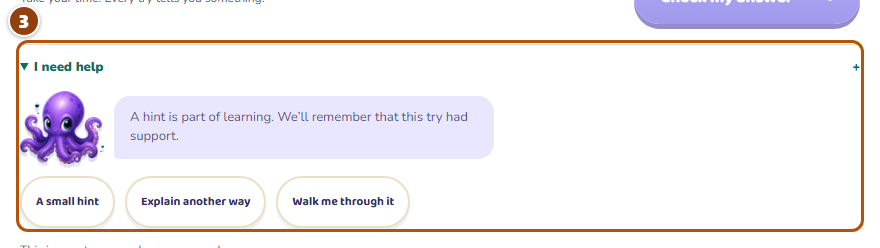
Open I need help for A small hint, Explain another way or Walk me through it. After a first wrong answer, the lesson explains what it suggests and shows a clue. After a second, the worked answer opens. A hint is part of learning: the lesson notes that this try had support. In Try solo, try your own idea first.
Reference 3 · The numbered outline marks the useful controls. Select the screenshot to enlarge it. Step 4. Replay the idea
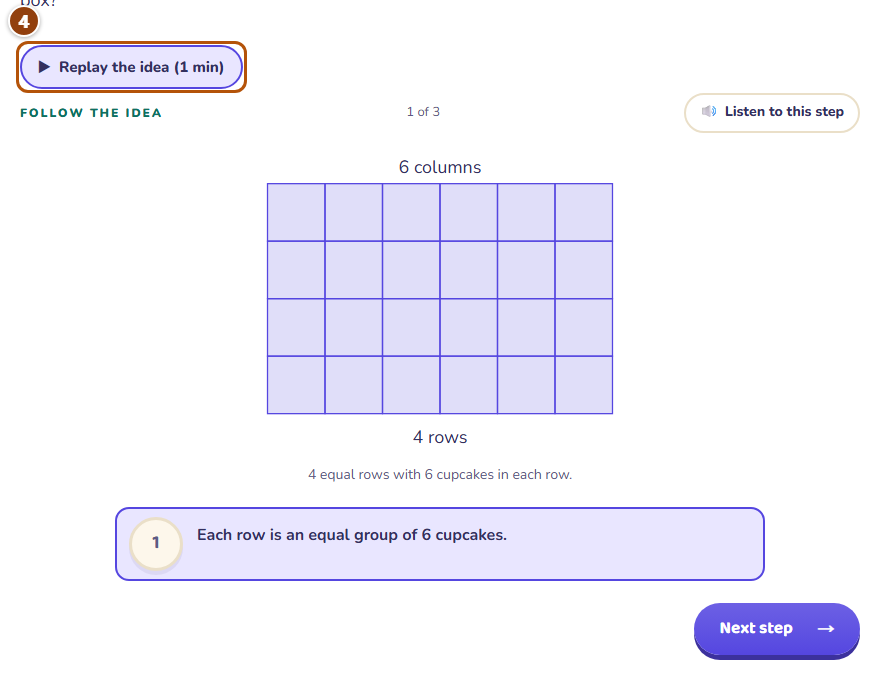
In the Example step, choose Replay the idea for an animated replay of the lesson’s big idea, about a minute long, read aloud with captions. Then follow the worked example; each step stays on screen under the one before.
Reference 4 · The numbered outline marks the useful controls. Select the screenshot to enlarge it. Step 5. Type a number, with or without its unit
Type just the number. When the question asks for a unit, you can type it too: 40 cents counts the same as 40. Other words after the number are not graded yet: a tip asks for the number alone, and that try does not count. The line under the answer box says which form to use, such as a fraction with a slash (/).
Step 6. Earn stars and badges
A lesson gives one star when you practice it, two when you solve its last task on your own and three when you still remember it after a break. Recalls of an idea open a day later, then after a week and a month. A game gives up to three stars. Open Stars for your total, your days in a row, your badges and your best games.
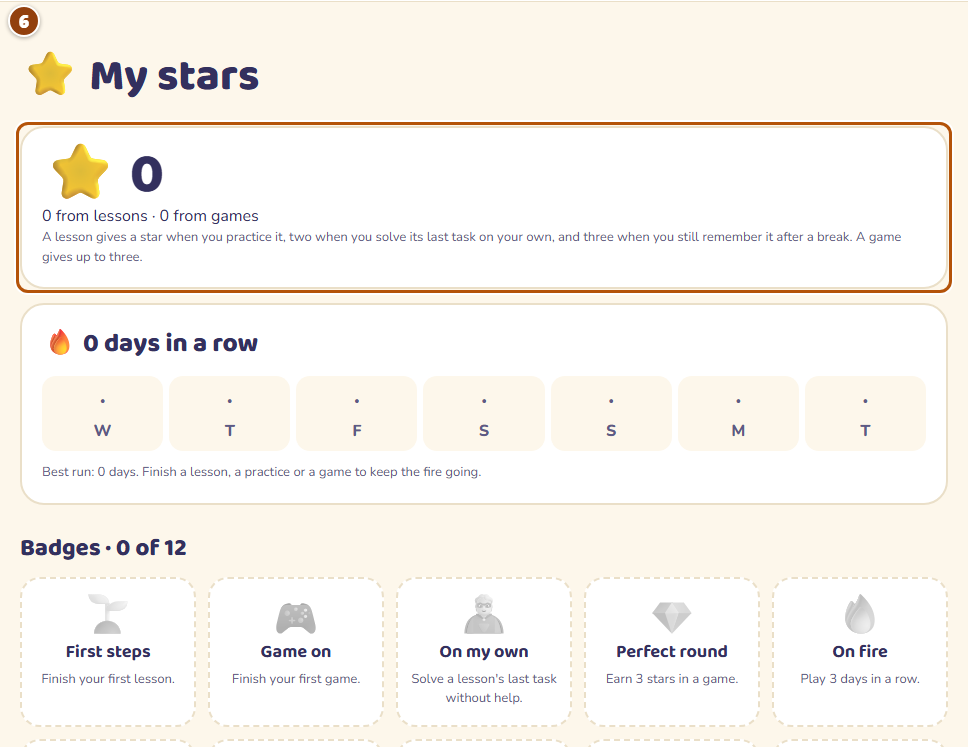
Reference 6 · The numbered outline marks the useful controls. Select the screenshot to enlarge it. Step 7. Find a chapter
Open Chapters to see your course. Every chapter is open, so you can pick what you are learning at school. Continue my learning goes to your next lesson. A unit check at the end of each unit shows what has stuck.
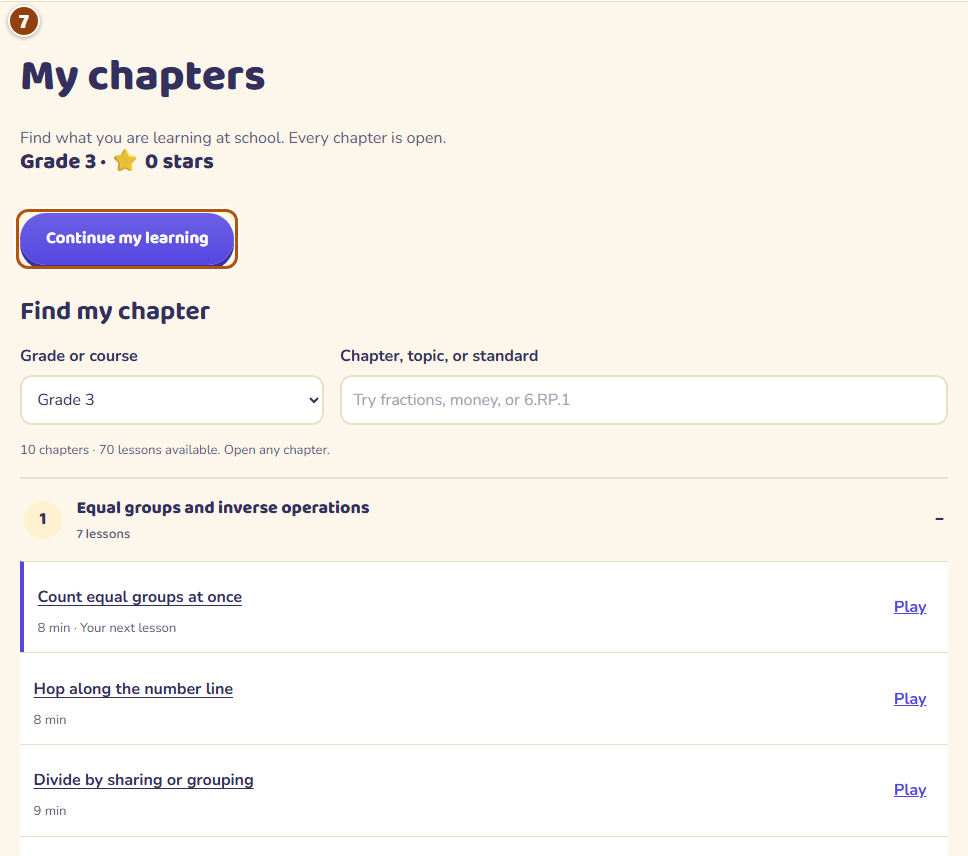
Reference 7 · The numbered outline marks the useful controls. Select the screenshot to enlarge it. Step 8. Play the math games
Choose Play a game on it after a lesson, or the Games tile on Math home. A lesson’s games use its own questions with new numbers each round: Quiz Rush, Pair Up and True or False Blitz. Quiz Rush has no clock unless you tick Play with the clock. Each answer you miss comes with the way to find it. Play together offers Team quest and Mistake detectives for 1 to 5 players taking turns on one screen.
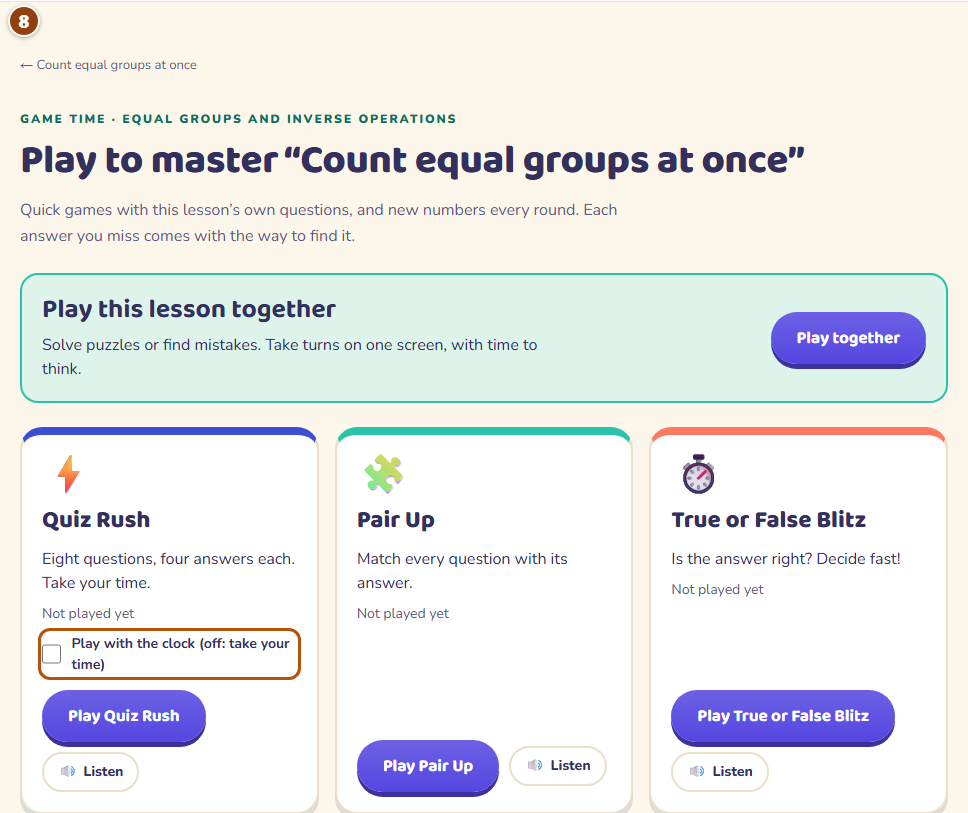
Reference 8 · The numbered outline marks the useful controls. Select the screenshot to enlarge it.