
Join or host a live game
Join a game with a code, or host one for your class, family or friends.
Step 1. Join with a game code
Open skillwisy.com/join, or choose Join a game with a code at the bottom of Study. No account is needed. Type the 8-character code from your teacher, parent or game host, then choose Continue.
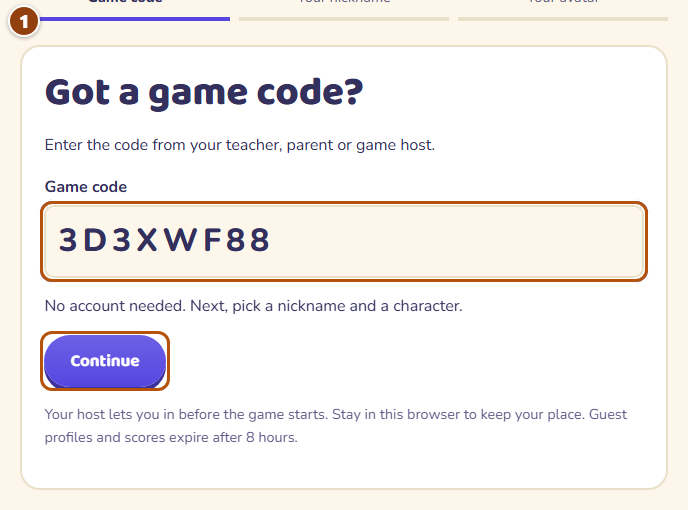
Reference 1 · The numbered outline marks the useful controls. Select the screenshot to enlarge it. Step 2. Pick a nickname and an avatar
Type a nickname rather than your full name; everyone in the game sees it. A child account gets a ready-made game name instead, with Pick another name. Choose an avatar, then Join game. Your host lets you in before the game starts. Stay in the same browser to keep your place. Guest profiles and scores expire after 8 hours.
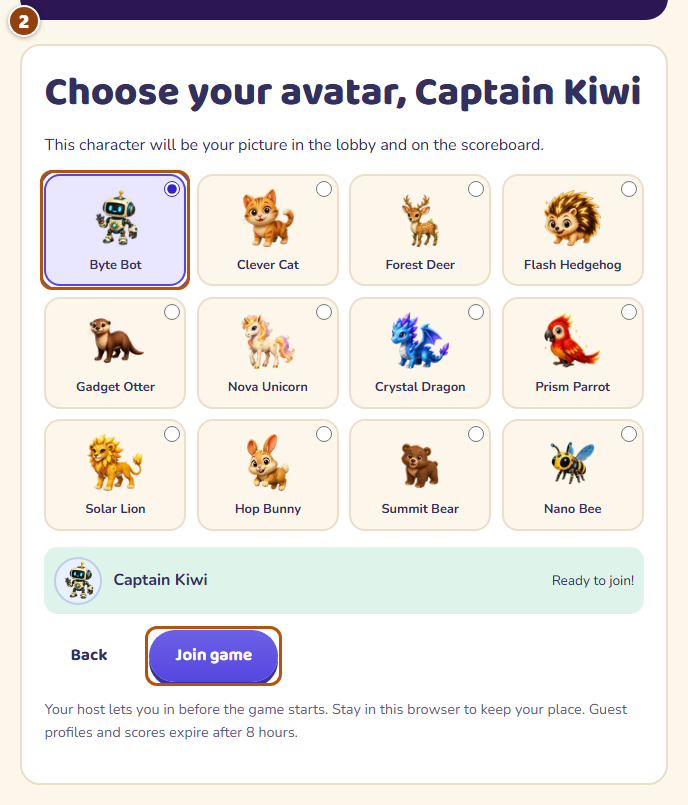
Reference 2 · The numbered outline marks the useful controls. Select the screenshot to enlarge it. Step 3. Set up a live Math game
In Skillwisy Math, open Games and choose one of the six games. Under Choose how to play, choose Host a live game: an adult account is needed to host a Math game, and anyone can play By myself. Set the Player limit and tick I will play too if you want a place. Choose 1 to 12 chapters under Choose topics, set the pace, then choose Open the lobby.
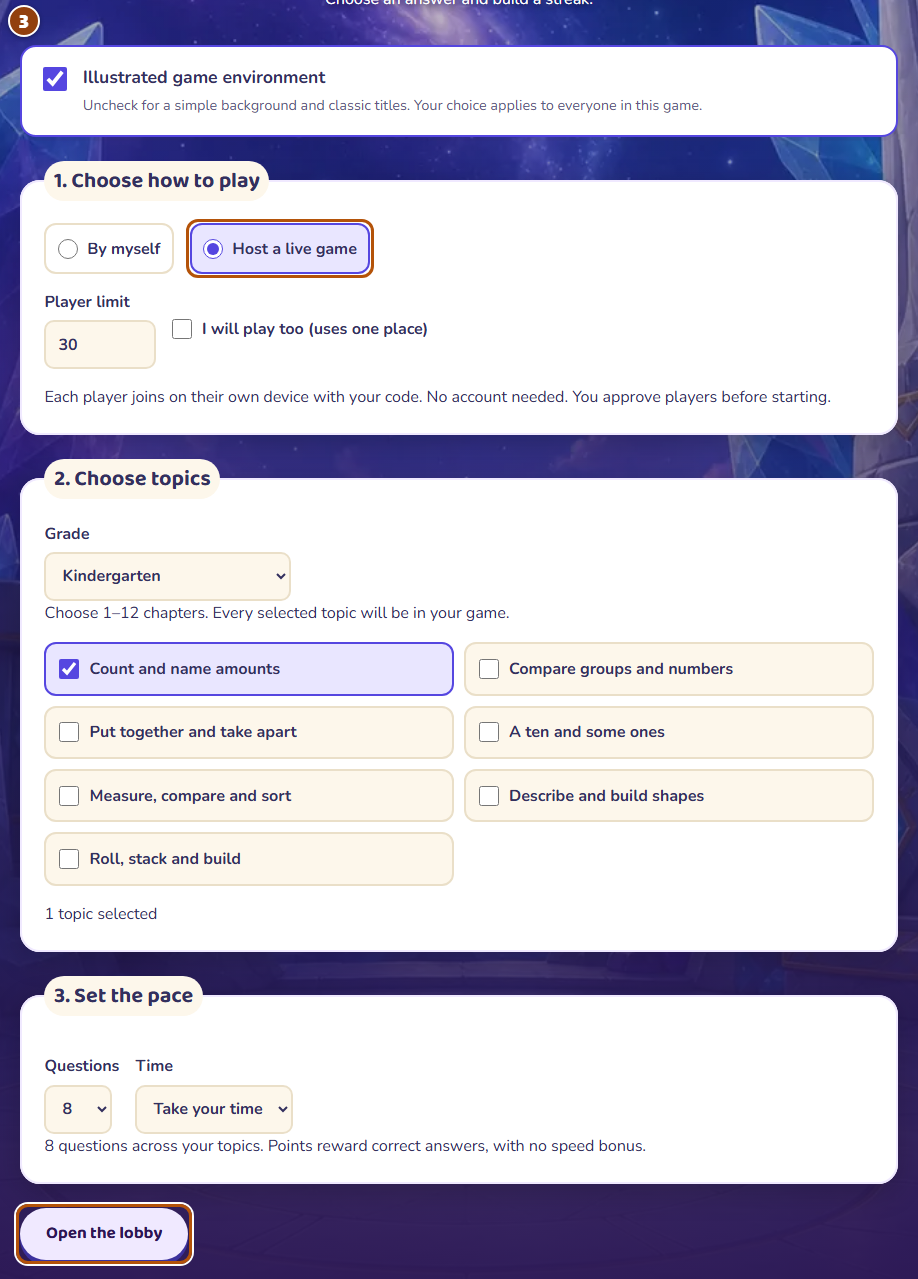
Reference 3 · The numbered outline marks the useful controls. Select the screenshot to enlarge it. Step 4. Share the code
The lobby shows the game code and a QR code. Players join at skillwisy.com/join with the code, or scan the QR code. Copy invite link copies a link that opens the join page.
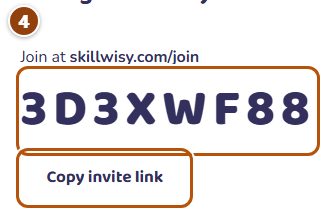
Reference 4 · The numbered outline marks the useful controls. Select the screenshot to enlarge it. Step 5. Let players in and start
Waiting names stay hidden while the lobby may be on a shared screen. Choose Show waiting names, check each name with your group, then choose Admit or Decline. When everyone is in, choose Start for everyone. Starting closes invitations and declines anyone still waiting.
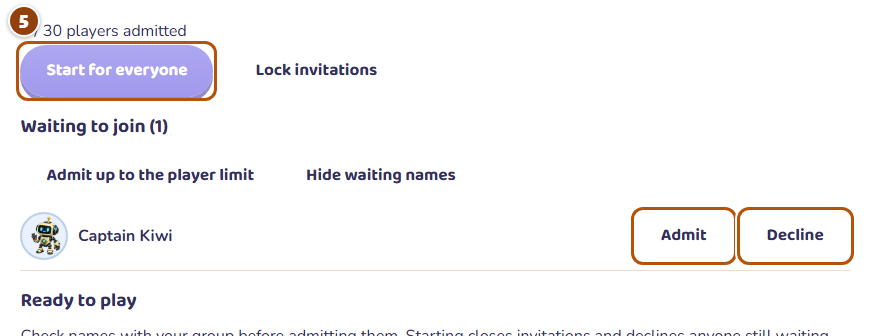
Reference 5 · The numbered outline marks the useful controls. Select the screenshot to enlarge it. Step 6. Host a game from your notes
In Study, open Play and pick a notebook under Make a game from. Choose one of the six games and Play with friends, then Open the lobby. Any Study account can host the games of its own notebooks. Friends join with your code, a nickname and an avatar, without an account, and see questions and answers from that notebook. Making a game never uses your AI allowance.
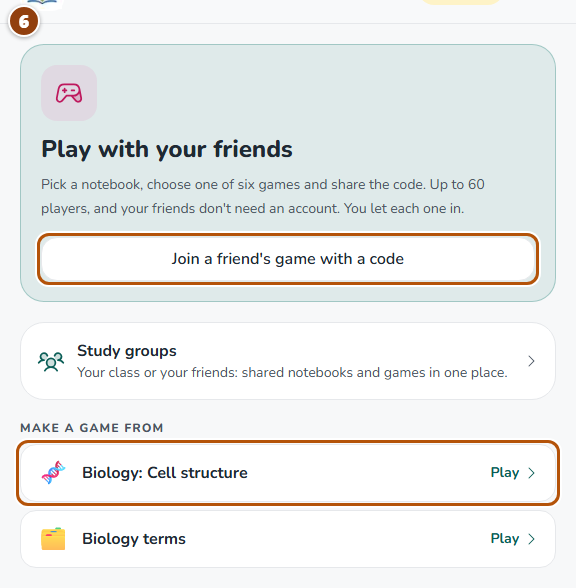
Reference 6 · The numbered outline marks the useful controls. Select the screenshot to enlarge it.